Don’t hesitate to contact us:
Forum: discuss.graphhopper.com
Email: support@graphhopper.com
I would like to show you how to define the geographic shape of a route without losing the optimization within each area. Imagine you are a route planner and you know that your driver should visit the north side of town first, then the center, then the south. Until now you had to either set tight time windows or manually group every single job. With the new in_area_sequence relation, you just pick one representative stop per area and we do the rest.
Your relation specification looks like this:
{
  "type": "in_area_sequence",
  "ids": ["stop_north", "stop_center", "stop_south"],
  "area_radius": 5000
}
The ids are your anchor stops, one per area, in the order you want them visited. The area_radius (in meters) defines how far around each anchor we look for other jobs. Any job within that road distance is automatically assigned to the anchor’s area. Within each area, stop order is fully optimized.
If you want to assign the area sequence to a specific vehicle, just add a vehicle_id:
{
  "type": "in_area_sequence",
  "ids": ["stop_north", "stop_south"],
  "area_radius": 5000,
  "vehicle_id": "vehicle1"
}
This is especially useful if you are building a visual planning tool. Each click on a map becomes an anchor that shapes the route. Assign a vehicle_id and the click defines a cluster. All nearby jobs are automatically assigned to that vehicle.
You can use multiple in_area_sequence relations to assign different area sequences to different vehicles. Jobs that fall outside all radii are placed wherever fits best.
Let’s say you have 10 deliveries spread across Munich and you want the driver to work from north to south. Pick one stop in the north and one in the south as anchors:
{
      "type": "in_area_sequence",
      "ids": ["s10", "s01"],
      "area_radius": 200000
}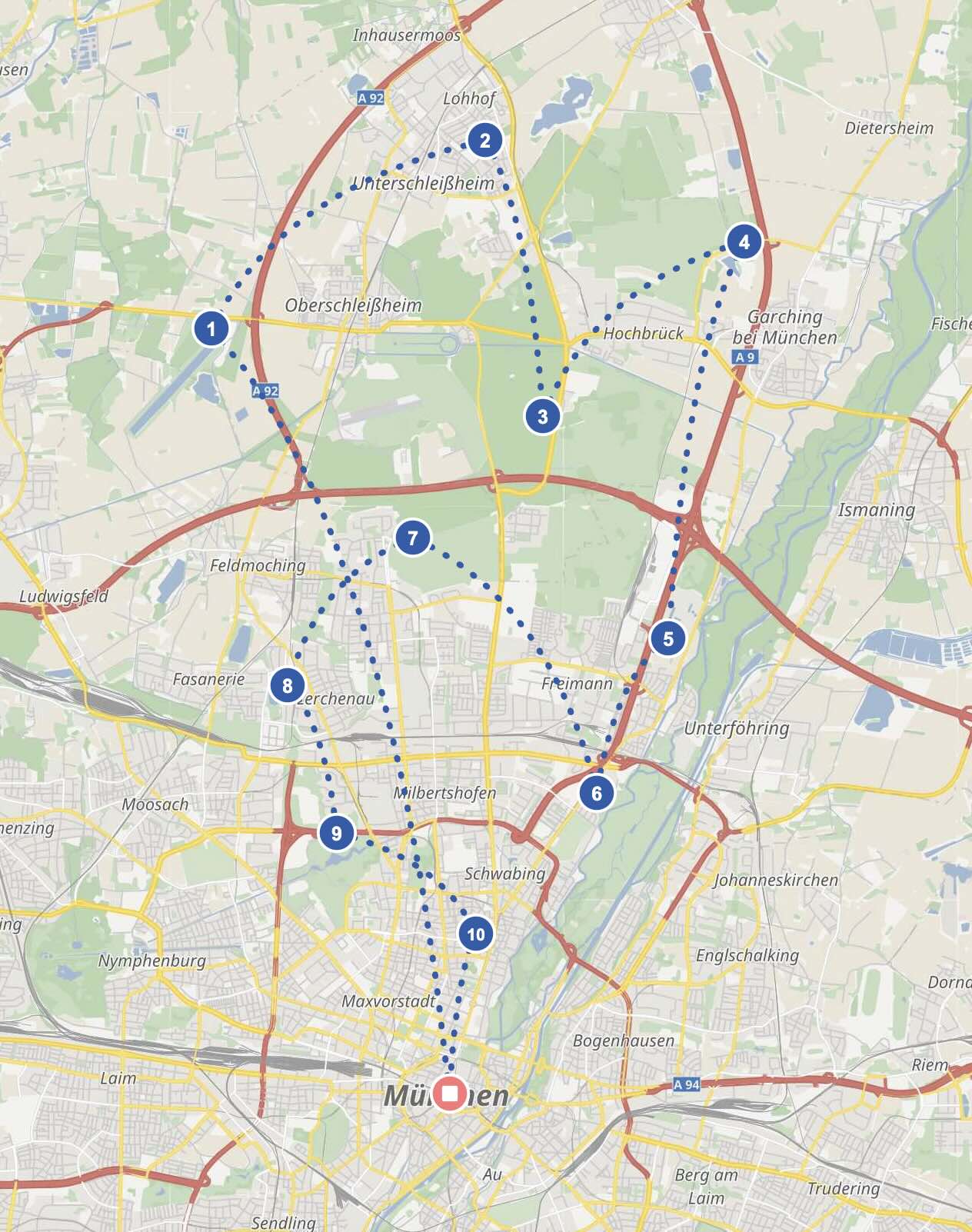
With a large radius, all jobs cluster into two areas: those closer to s10 (north) and those closer to s01 (south). The driver visits the northern cluster first, then the southern cluster. Within each cluster, the optimizer finds the best stop order.
Try this example in the API explorer
Now imagine you have 20 deliveries and two vehicles. You want each driver to cover a different part of the city. Pick one anchor per driver:
"relations": [
    {
      "type": "in_area_sequence",
      "ids": ["s06"],
      "area_radius": 200000,
      "vehicle_id": "v1"
    },
    {
      "type": "in_area_sequence",
      "ids": ["s17"],
      "area_radius": 200000,
      "vehicle_id": "v2"
    }
  ]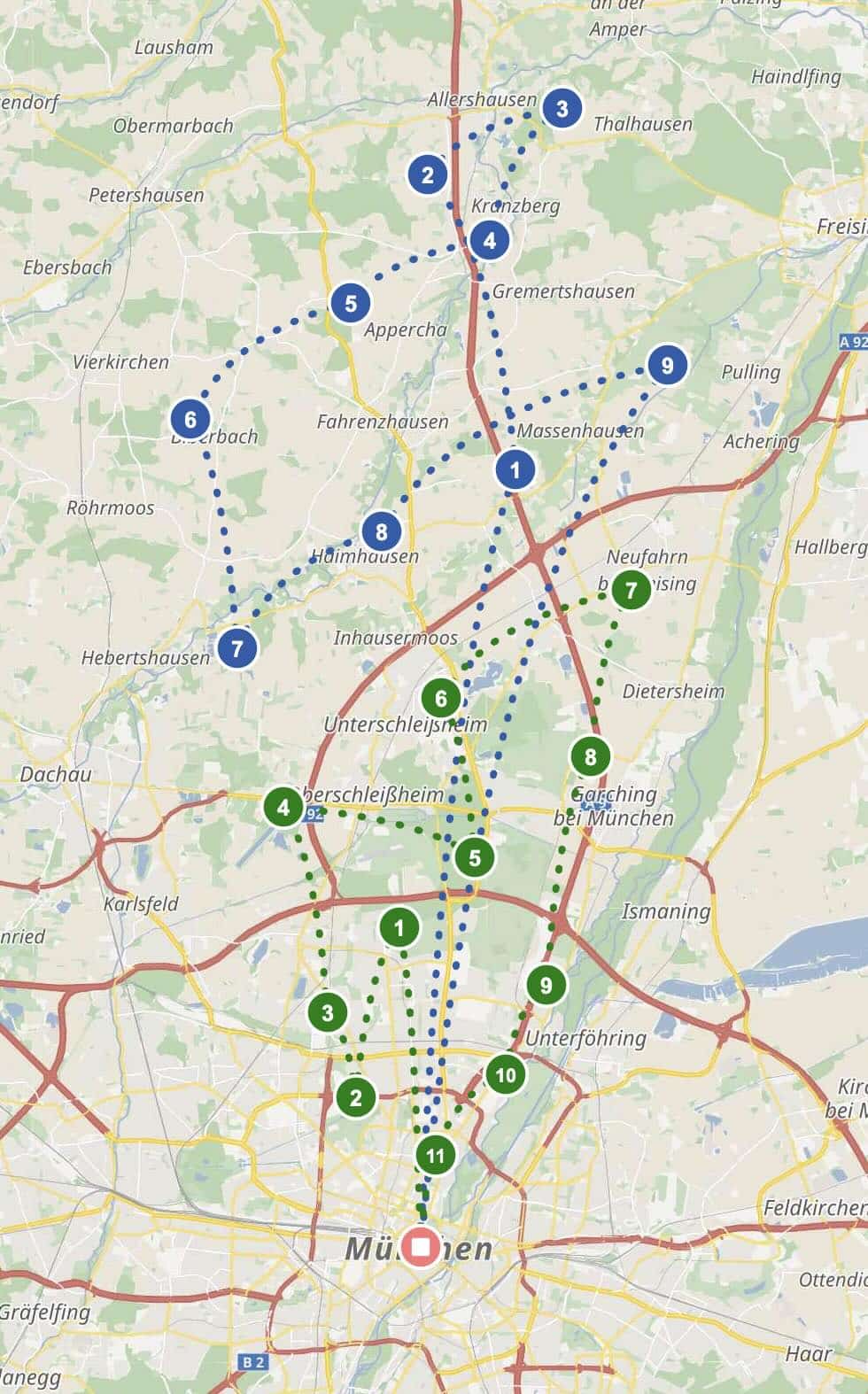
Each job is assigned to its nearest anchor by road distance. Jobs closer to s06 go to vehicle 1, jobs closer to s17 go to vehicle 2. You effectively split the city into two delivery zones with a single click per driver.
Try this example in the API explorer
A common pattern is to drive a loop: start in the north, move east, then south, then west — or any clockwise (or counter-clockwise) order around a city. Just place your anchors along the desired loop:
"relations": [
    {
      "type": "in_area_sequence",
      "ids": ["north", "east", "south", "west"],
      "area_radius": 10000
    }
  ]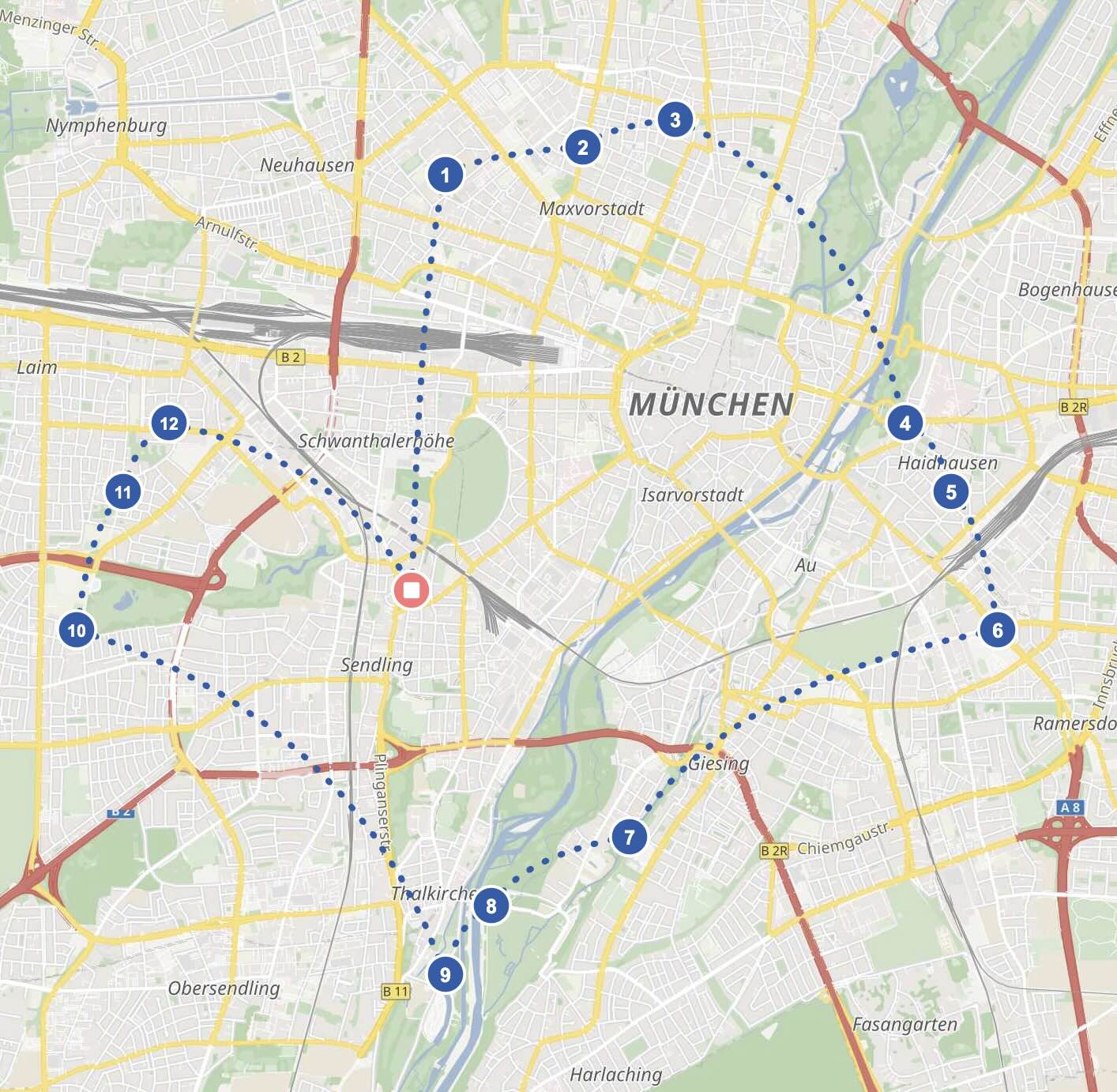
The driver leaves the depot at Lipowskystr. 30, heads north to serve that cluster, continues clockwise through east, south, and west, then returns to the depot. Each of the 8 ungrouped jobs is automatically assigned to the nearest anchor — forming four geographic clusters visited in a loop.
To reverse the direction, simply reverse the ids array: ["west", "south", "east", "north"].
Try this example in the API explorer
For more fine-grained control, have a look at the new auto_assign_radius property under configuration.optimization, which lets you auto-assign ungrouped jobs to existing groups by proximity.
Happy routing!
